Image to Text Converter

Extract text from any image, photo or screenshot in seconds. Free online OCR that works in your browser, with no sign-up and no uploads.

Click to choose or drag and drop images here

You can also paste a screenshot anywhere on this page with Ctrl+V (Cmd+V on a Mac).

The image to read, with a crop box

Quick Method — Image to Text

How to extract text from an image: add a photo, screenshot or scanned page, choose the language and click Extract Text. Then copy the text or download it as a TXT or Word file.

Got a screenshot? Press Ctrl+V (Cmd+V on a Mac) anywhere on this page to paste it.

Copy Text From Any Picture

Turn a picture to text in seconds. This free image to text converter works for photo to text, JPG to text, PNG to text and screenshot to text, so you can copy text from an image instead of typing it out.

Why Use Our Image to Text Converter?

Free and No Sign-Up

Use it as often as you like, with no account and no watermark.

Private

It works on your device. Your images are never uploaded.

15 Languages

Read English, Spanish, German, Arabic, Chinese and more.

Paste, Drag or Snap a Photo

Paste a screenshot, drag in a file or take a photo on your phone.

Multiple Images at Once

Add up to 10 images and get the text from each one.

Copy or Download TXT/Word

Copy the text, or save it as a .txt or Word file.

How to Extract Text From an Image

  1. 1

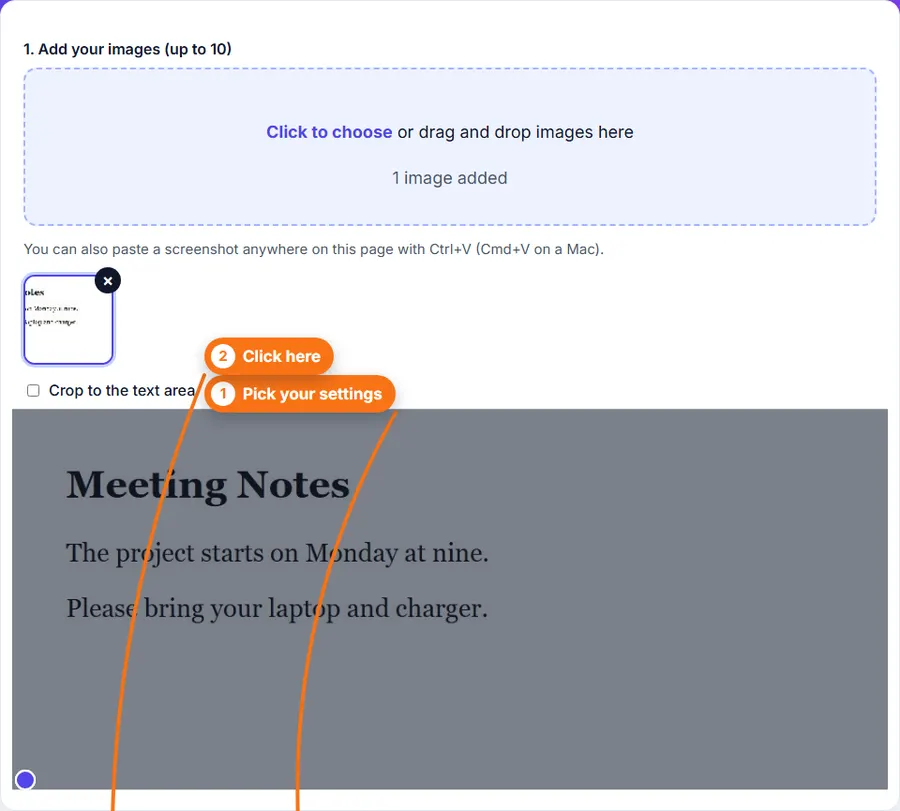
    Add your image: click to choose, drag it in, paste a screenshot with Ctrl+V, or take a photo on your phone.

  2. 2

    Choose the language of the text.

  3. 3

    Optional: rotate the image or crop it to just the text.

  4. 4

    Click Extract Text and wait while the text is read.

  5. 5

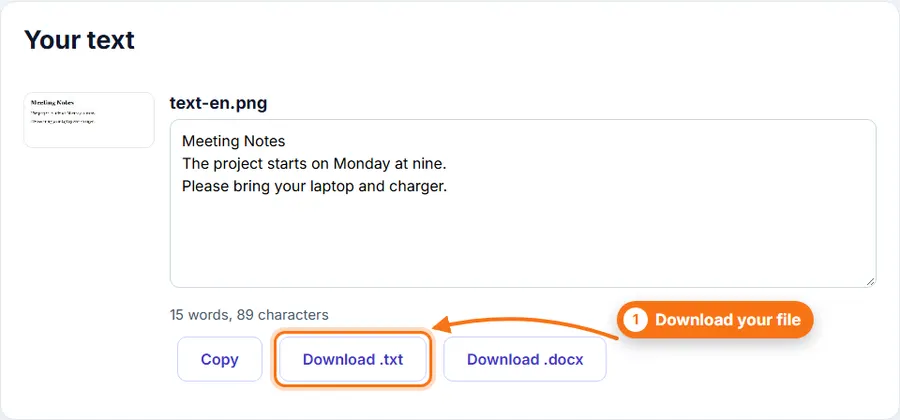
    Edit the text if needed, then copy it or download it as a .txt or Word file.

Step-by-Step Pictorial Guide — Easy to Use

  1. A screenshot with text added to Image to Text, with the rotate, crop and language options
    Step 1 A screenshot with text added to Image to Text, with the rotate, crop and language options
  2. The text read from the image in an editable box, with Copy, Download .txt and Download .docx buttons
    Step 2 The text read from the image in an editable box, with Copy, Download .txt and Download .docx buttons

What Can You Convert to Text?

Tips for Better Results

  • Use a clear, well-lit photo without shadows or glare.
  • Crop to just the text you need.
  • Straighten the image: rotate it so the text is level.
  • Choose the right language before you start.
  • Higher resolution helps. Small or blurry text is harder to read.

What Is OCR?

OCR stands for optical character recognition. It looks at the shapes of the letters in an image and turns them into real text you can edit, search and copy. This tool uses Tesseract, a widely used open-source OCR engine, right in your browser.

Frequently asked questions

Is this image to text converter free?

Yes. It is completely free, with no sign-up and no watermark.

Are my images uploaded or stored?

No. The text is read on your own device, in your browser, and your images are never uploaded or stored. Only the language file is downloaded, once, to read the text.

How do I copy text from a picture on my phone?

Open this page in your phone browser, tap Take photo or choose a picture, then tap Extract Text. When the text appears, tap Copy and paste it wherever you need it.

Can it read handwriting?

Sometimes. Clear, neat handwriting can work, but results vary. Printed text, screenshots and documents give the best results.

Which languages are supported?

15 languages: English, Spanish, German, Italian, Dutch, French, Portuguese, Polish, Turkish, Russian, Arabic, Hindi, Urdu, Chinese (Simplified) and Japanese. Choose the language of the text before you start.

Which image formats can I use?

JPG, JPEG, PNG, WebP, GIF (the first frame), BMP and HEIC photos from iPhones, up to 20 MB each.

How do I convert a screenshot to text?

Take the screenshot, then press Ctrl+V (Cmd+V on a Mac) on this page to paste it, or choose the file. Click Extract Text and copy the result.

Can I convert multiple images to text at once?

Yes. Add up to 10 images. Each one gets its own text box, and you can copy all the text or download it as one .txt file.

Why is some text wrong or missing?

Usually the image is blurry, the contrast is low or the wrong language is selected. Try a sharper photo, crop to just the text, straighten the image and pick the right language.

Can I save the text as a Word file?

Yes. Click Download .docx under the result to save it as a Word document. You can also download a .txt file or copy the text.
Was This Image to Text Helpful?

Your feedback helps us improve FastestImageTools.