Click to choose or drag and drop images here
Photos keep their proportions. Leave a box empty to set no limit on that side.
Resize many photos with the same settings and download them as a ZIP. Everything runs in your browser.
Click to choose or drag and drop images here
Photos keep their proportions. Leave a box empty to set no limit on that side.
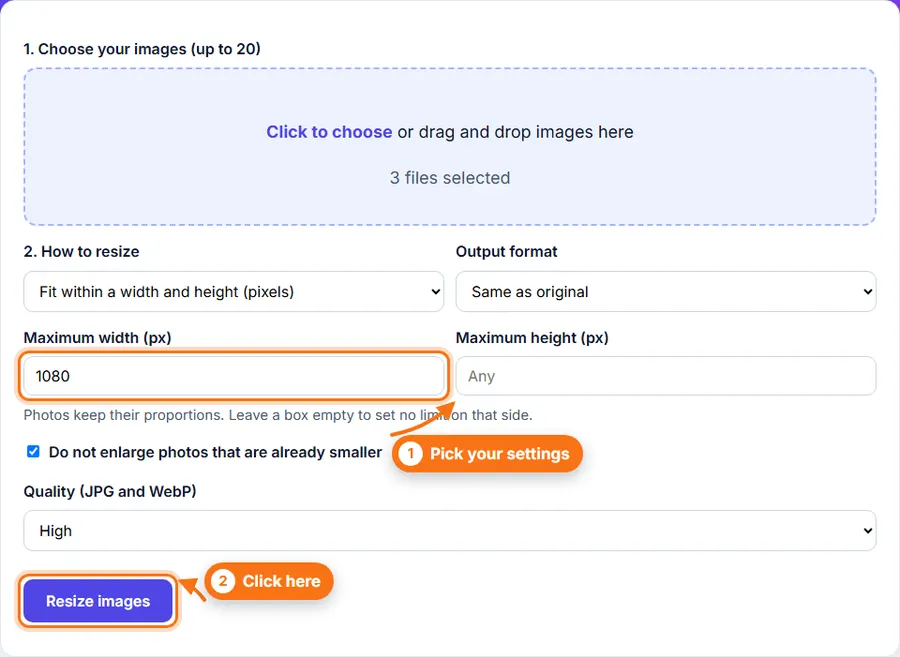
How to resize images in bulk: choose up to 20 photos, set a width, height or percentage, and click Resize images. Then download each photo or all of them as a ZIP.
Apply the same width, height or percentage to up to 20 photos in one go.
Download every resized photo together as a single ZIP file.
Photos keep their shape, so nothing looks squashed or stretched.
Use it without creating an account or wasting time.
Choose up to 20 photos, or drag them into the upload area.
Pick how to resize: fit within a width and height, or scale by a percentage.
Set your limits. In pixel mode you can leave one box empty to set no limit on that side.
Choose an output format, or keep each photo's own format.
Click Resize images and wait for the progress line to finish.
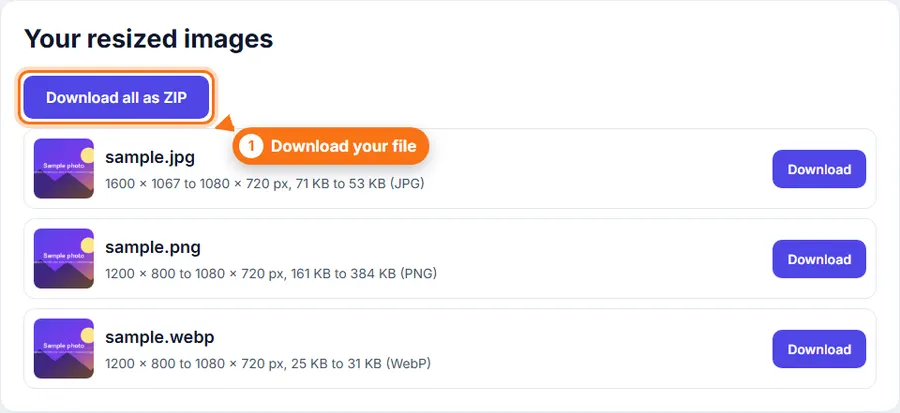
Download each image on its own, or click Download all as ZIP.
You do not always need a desktop photo editor just to resize a batch of photos. FastestImageTools keeps it simple so you can make the change you need and get back to your work without unnecessary editing tools.
Up to 20 photos at a time, each up to 30 MB.
The others still finish. The failed photo shows an error message in its row.
Every photo that was resized successfully. If two files have the same name, the second one gets a number added.
JPG, PNG and WebP files keep their format. Other types, such as GIF and BMP, are saved as JPG.
No. Everything runs in your browser, so your photos are not sent to our servers.
Your feedback helps us improve FastestImageTools.
Please do not include personal details.
Choose how to send your message. It is only sent when you press Send in the email service you pick.
No email service? Copy the message and send it to Itkountsllc@gmail.com from any email account.