Increase Image Size in KB or MB

Increase image size in KB or MB online. Increase JPG and PNG image size quickly without signing up.

Click to choose or drag and drop an image here

How it works: the tool adds invisible filler data inside the file, so the picture looks exactly the same. It does not make the photo sharper or larger on screen. Use it when a form or website needs a minimum file size. A very strict upload system could re-process the file and remove the extra data. WebP, GIF and BMP files are converted to JPG first.
Quick Method — Increase Image Size

How to increase image size in KB or MB: choose a JPG or PNG, pick a percentage or an exact size such as 100 KB or 1 MB, and click Increase file size. The picture stays the same. Only the file gets bigger.

This adds hidden filler data, so the picture looks exactly the same. Use it only when a form needs a minimum file size.

Make a File Bigger When a Form Requires It

Some forms and portals ask for a minimum file size. Increase your JPG or PNG by a percentage or to an exact size in KB or MB. The picture itself stays exactly the same.

Why Use This Tool?

Percentage or Exact Size

Grow the file by a percentage, or type the size you need.

Quick Size Choices

Tap common sizes such as 200 KB, 500 KB or 1 MB.

Picture Unchanged

The pixels stay identical. Only the file size changes.

No Login Required

Use it without creating an account or wasting time.

How to Use Image Increaser Tool

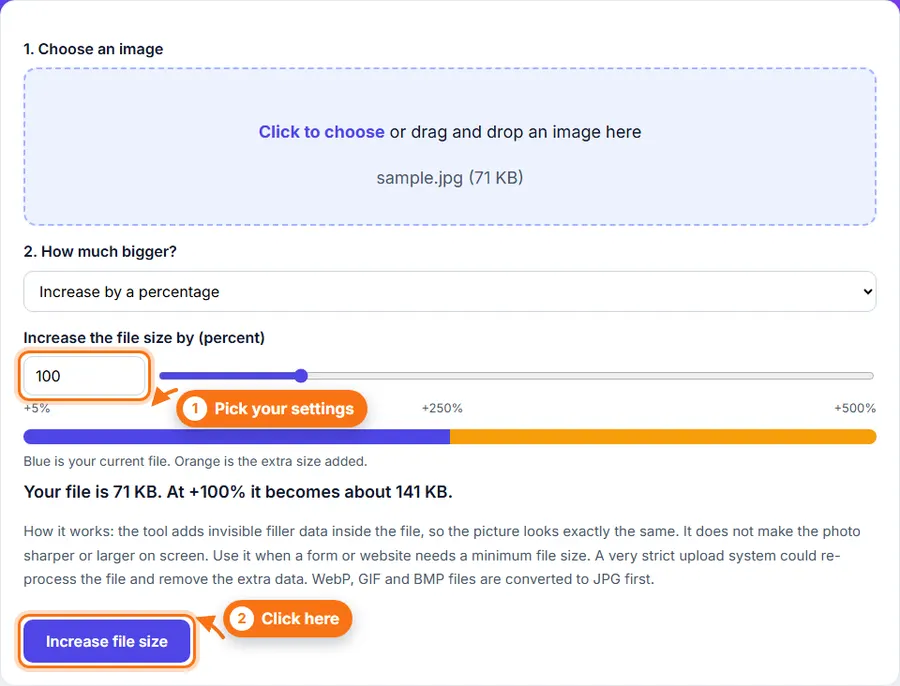
  1. 1

    Choose a JPG or PNG photo, or drag one in. It stays on your device.

  2. 2

    Pick how much bigger: increase by a percentage, or set an exact file size.

  3. 3

    For a percentage, move the slider or type a number. The bar shows your current size and the extra size added.

  4. 4

    For an exact size, tap a quick choice such as 200 KB or 1 MB, or type your own and choose KB or MB.

  5. 5

    Click Increase file size.

  6. 6

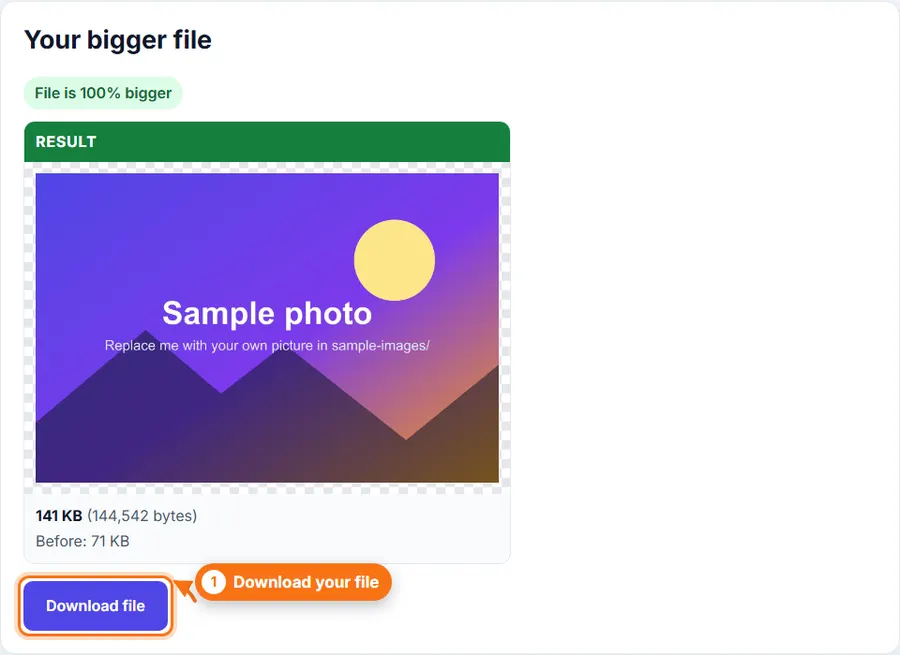
    Check the new size, then click Download.

Step-by-Step Pictorial Guide — Easy to Use

  1. A photo chosen in Increase Image Size with the percentage slider
    Step 1 A photo chosen in Increase Image Size with the percentage slider
  2. The bigger file size shown next to the original size, with a Download button
    Step 2 The bigger file size shown next to the original size, with a Download button

Common Uses

Tips

  • Use this only when a form or website asks for a minimum file size.
  • Aim for the smallest size that meets the requirement.
  • Keep your original photo.

Make a file bigger Without Complicated Software

You do not always need a desktop photo editor just to make a file bigger. FastestImageTools keeps it simple so you can make the change you need and get back to your work without unnecessary editing tools.

Frequently asked questions

Does this make my photo look better?

No. The picture stays exactly the same. Only the file gets bigger, because extra filler data is added inside it.

Why would I need a bigger file?

Some forms and portals set a minimum file size, for example at least 200 KB. This tool helps you meet that rule.

Is the picture changed in any way?

The pixels stay identical. Your JPG or PNG is not re-compressed, and the image details are kept.

What about WebP, GIF and BMP files?

Only JPG and PNG can be padded directly. Other types are converted to JPG first.

Will every website accept the bigger file?

Most will. A very strict upload system might re-process the file and remove the extra data, which would bring the size back down.

What is the largest size I can make?

Up to 50 MB, starting from a file of up to 30 MB.

Is my photo uploaded?

No. Everything happens in your browser.

Was This Increase Image Size Helpful?

Your feedback helps us improve FastestImageTools.