Click to choose or drag and drop a GIF here
Compressing a GIF reduces colors, size or frames, so it can look slightly different. Check the After preview.
Make animated GIF files smaller and keep them moving. Choose colors, size and frames, then compare the result.
Click to choose or drag and drop a GIF here
Compressing a GIF reduces colors, size or frames, so it can look slightly different. Check the After preview.
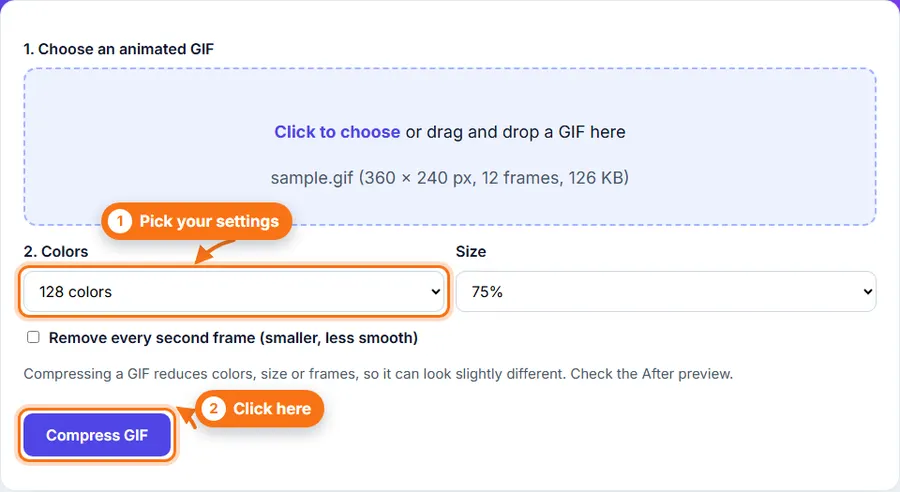
How to compress a GIF: choose your GIF, pick fewer colors or a smaller size, and click Compress GIF. Compare the file sizes, then download.
Your GIF still moves after compressing.
Choose colors, size and frames with a few clicks.
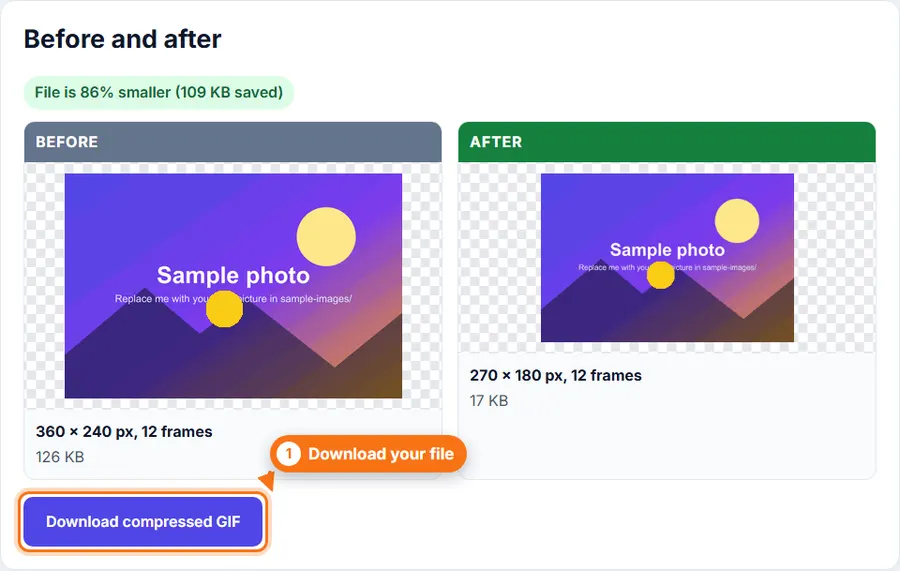
Compare file sizes and previews before you download.
Use it without creating an account or wasting time.
Choose an animated GIF, or drag one into the upload area.
Pick the number of colors. Fewer colors make a smaller file.
Optionally make the GIF smaller in size, or remove every second frame.
Click Compress GIF and wait for the progress line to finish.
Compare the Before and After, then download.
You do not always need a desktop photo editor just to make a GIF file smaller. FastestImageTools keeps it simple so you can make the change you need and get back to your work without unnecessary editing tools.
Yes. Every frame is kept, unless you choose to remove every second frame. The overall speed stays the same.
It can. Fewer colors can cause banding or speckles, especially in photos and gradients. Check the After preview before you download.
Some GIFs are already well optimized. If the result is not smaller, the tool tells you and you can keep your original.
Up to 30 MB. Very long GIFs with many frames may be too large for your browser to handle.
No. Everything happens in your browser.
Your feedback helps us improve FastestImageTools.
Please do not include personal details.
Choose how to send your message. It is only sent when you press Send in the email service you pick.
No email service? Copy the message and send it to Itkountsllc@gmail.com from any email account.