Click to choose or drag and drop a GIF here
Quick Method to Resize GIF
How to resize a GIF: choose your GIF, type a new width or height or pick a percentage, and click Resize GIF. Then download the resized animation.
Why Use This Tool?
Keeps the Animation
Every frame is resized and the timing stays the same.
Pixels or Percent
Type an exact size or scale by a percentage.
Keeps Proportions
The GIF keeps its shape, so nothing looks squashed.
No Login Required
Use it without creating an account or wasting time.
How to use GIF Resizer
- 1
Choose an animated GIF, or drag one into the upload area.
- 2
Pick how to resize: exact pixels, or a percentage.
- 3
Type a new width or height. With Keep proportions ticked, the other side updates for you.
- 4
Click Resize GIF and wait for the progress line to finish.
- 5
Compare the Before and After, then download.
Step-by-Step Pictorial Guide — Easy to Use
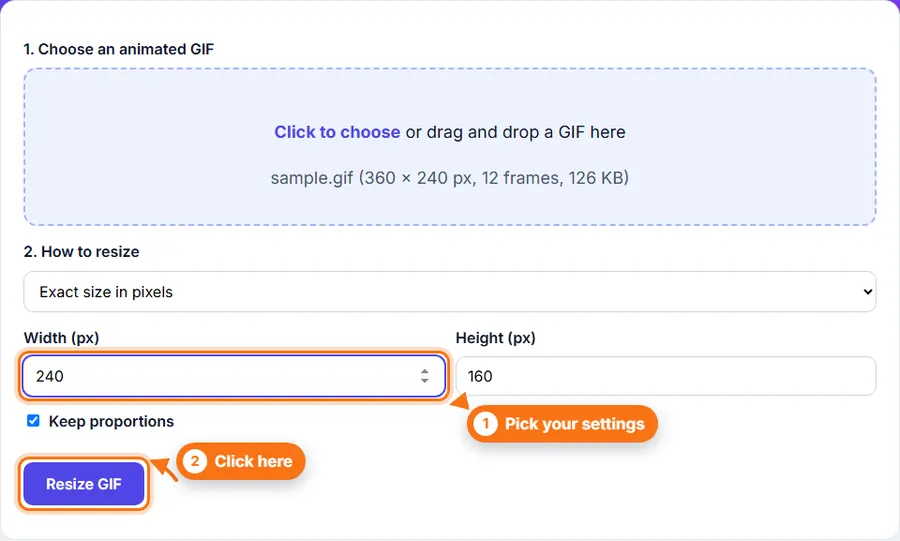
Step 1 An animated GIF chosen in the GIF Resizer with a new width of 240 pixels 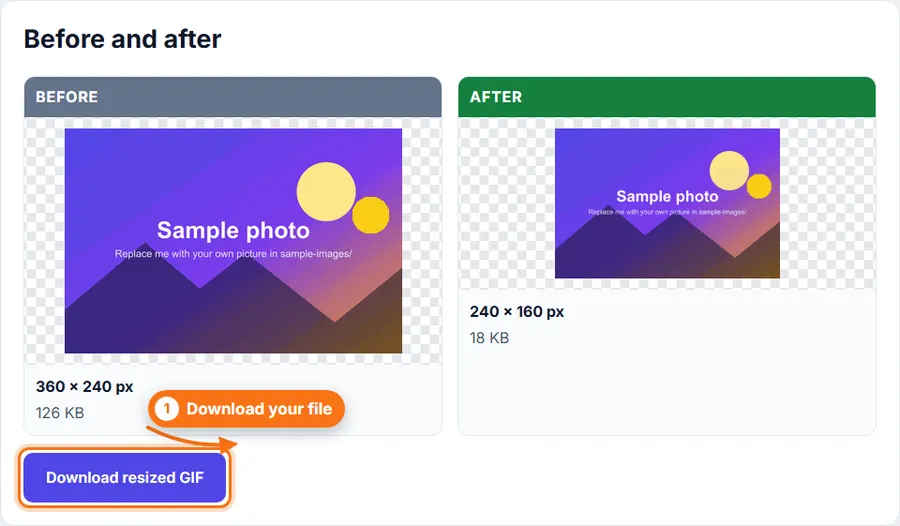
Step 2 The original and resized GIF side by side
Common Uses
- Make a GIF fit a website or blog layout.
- Shrink a GIF for a chat app or forum.
- Prepare a GIF for an email newsletter.
- Make a small animated icon or sticker.
- Resize screen recordings saved as GIF.
- Reduce GIF file size by making it smaller.
Tips
- Making a GIF smaller in size is the best way to make the file smaller too.
- Enlarging a GIF makes it look soft or blocky, because it cannot add detail.
- For a smaller file after resizing, try Compress GIF.
Resize an animated GIF Without Complicated Software
You do not always need a desktop photo editor just to resize an animated GIF. FastestImageTools keeps it simple so you can make the change you need and get back to your work without unnecessary editing tools.
Frequently asked questions
Does it keep the animation?
Yes. Every frame is resized and the timing stays the same.
Is the transparency kept?
Yes, transparent areas stay transparent. Soft, half-transparent edges become fully on or off, because GIF cannot store partial transparency.
How big can the GIF be?
Up to 30 MB. Very long GIFs with many frames may be too large for your browser to handle.
Is my GIF uploaded?
No. Everything happens in your browser.