Click to choose or drag and drop an SVG file here
JPG cannot be transparent, so empty areas are filled with the background color.
Turn SVG logos, icons and graphics into JPG images at the size and background color you choose.
Click to choose or drag and drop an SVG file here
JPG cannot be transparent, so empty areas are filled with the background color.
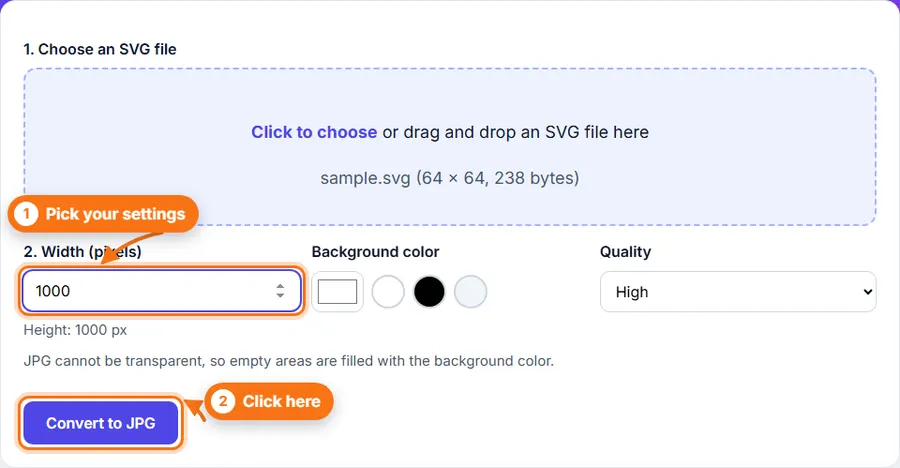
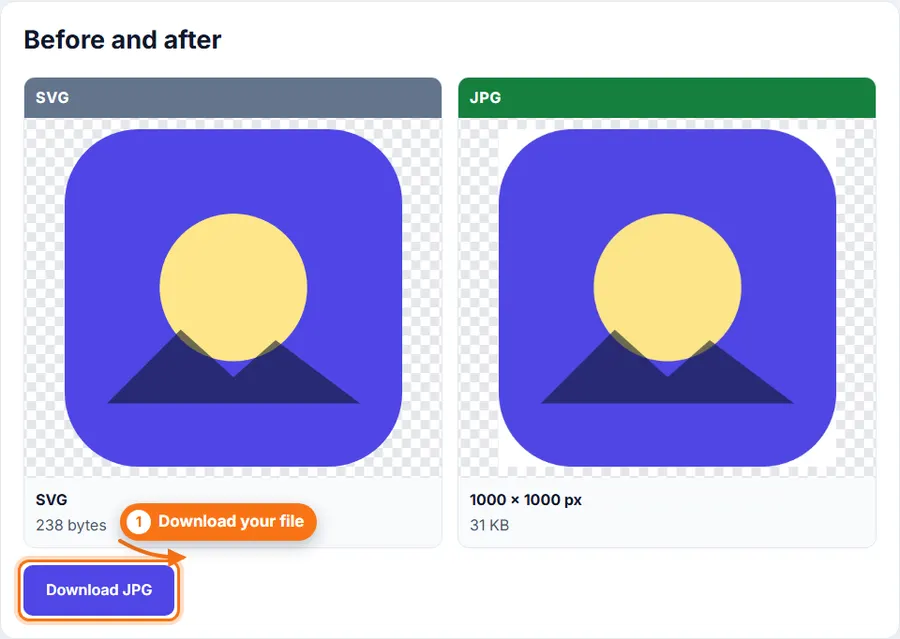
How to convert SVG to JPG: choose an SVG file, set the width and background color, and click Convert to JPG. Then download your image.
Set the width in pixels. The SVG stays sharp at any size.
Pick the color that fills transparent areas.
Choose how much detail to keep.
Use it without creating an account or wasting time.
Choose an SVG file, or drag one into the upload area.
Set the width you want. The height follows the SVG's own shape.
Pick a background color. JPG cannot be transparent, so empty areas are filled with it.
Pick a quality level.
Click Convert to JPG, check the result, and click Download.
You do not always need a desktop photo editor just to convert an SVG to JPG. FastestImageTools keeps it simple so you can make the change you need and get back to your work without unnecessary editing tools.
JPG cannot store transparency. Any transparent part of the SVG is filled with the color you pick. White is the most common choice.
From 16 to 8,000 pixels wide. The height is set by the SVG's proportions.
Some SVG files link to outside images or fonts. For your safety, browsers do not load those when drawing an SVG as a picture, so those parts can be missing.
No. The SVG is drawn and converted in your browser.
Your feedback helps us improve FastestImageTools.
Please do not include personal details.
Choose how to send your message. It is only sent when you press Send in the email service you pick.
No email service? Copy the message and send it to Itkountsllc@gmail.com from any email account.