Click to choose or drag and drop an image here
Quick Method to Resize Images
How to resize an image online: choose a photo, type a new width or height in pixels or pick a percentage, choose JPG, PNG or WebP, and click Resize image. Then download the result.
Why Use This Image Resizer?
Resize an image without complicated editing software or unnecessary settings.
Choose the width and height that match your requirements and are suitable for the platform.
Maintain the original aspect ratio when you want to prevent the image from looking stretched and out of proportion.
Resize your images without creating an account or wasting time.
How to Resize an Image
Upload your image using the image resizer tool above.
Enter the desired width or height.
Keep the aspect ratio enabled if you want to maintain the original proportions.
Apply the resize settings.
Download your resized image.
Step-by-Step Pictorial Guide — Easy to Use
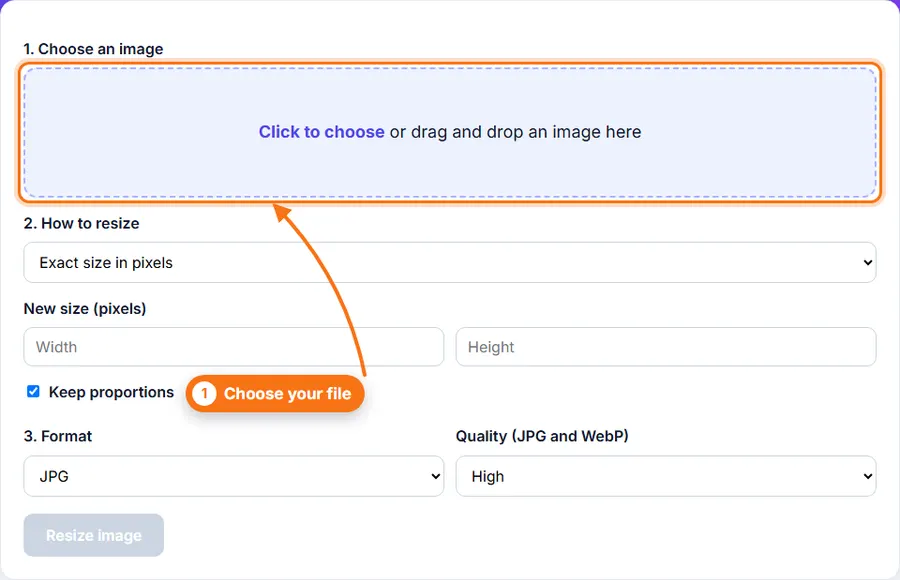
Step 1 The Image Resizer upload box before choosing a photo 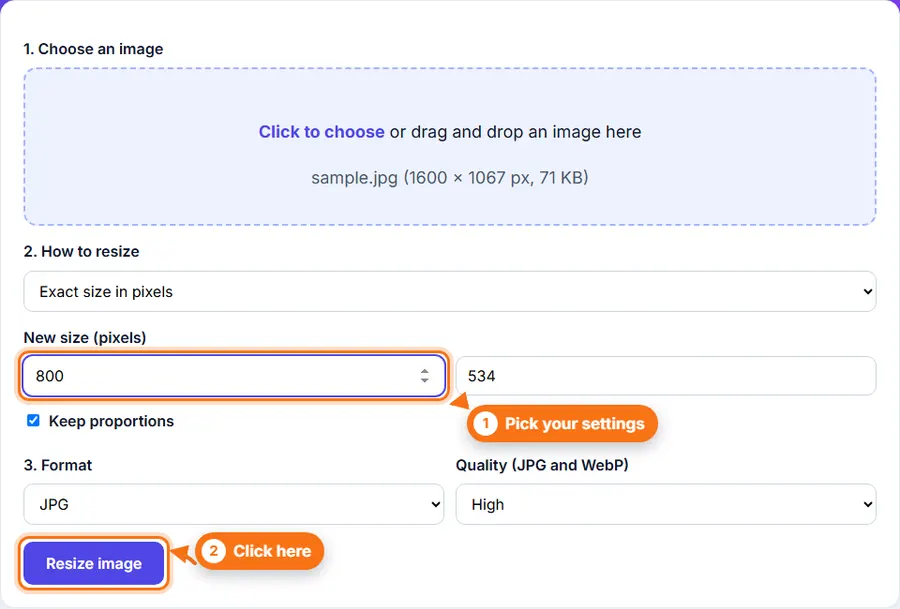
Step 2 A photo chosen in the Image Resizer, with the new width set to 800 pixels 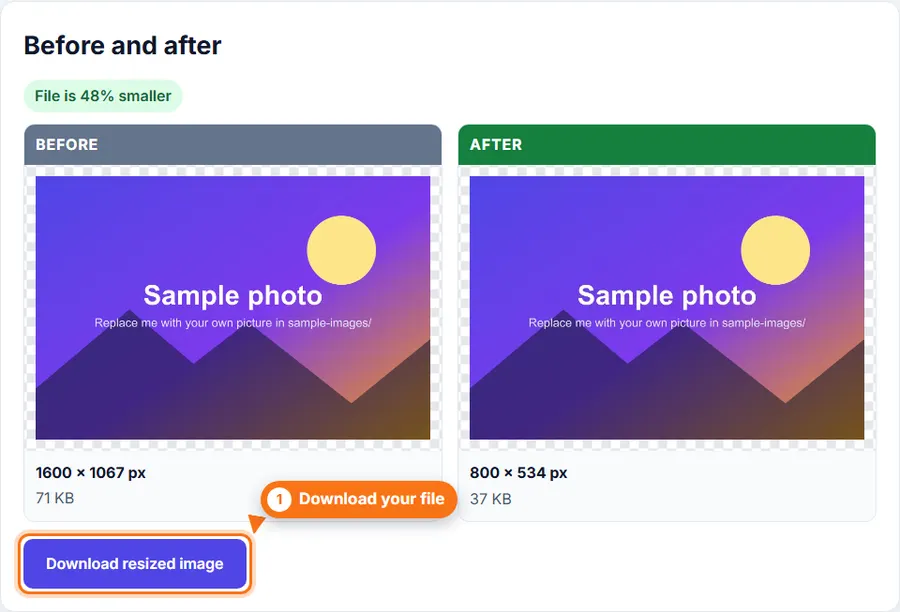
Step 3 Before and after panels in the Image Resizer, showing the new size and the Download button
Common Uses for Image Resizing
- Resize photos for websites and blogs.
- Prepare images for social media posts and profiles.
- Adjust images to meet online form requirements.
- Resize product photos for online stores and marketplaces.
- Reduce image dimensions before sharing or uploading.
- Prepare images for documents and presentations.
Image Resizing Tips
- Keep the aspect ratio locked when you want to avoid stretched images.
- If an image is too large for a website, reducing its dimensions can also help reduce the file size.
- For very large images, resize them before uploading them to websites or online services.
- If you need to reduce the file size without mainly changing the dimensions, use the FastestImageTools Image Compressor instead.
Resize Images Without Complicated Software
You do not always need a desktop photo editor just to change an image's dimensions. FastestImageTools keeps image resizing simple so you can make the changes you need and get back to your work without unnecessary editing tools.
Frequently Asked Questions About Image Resizing
What is an image resizer?
An image resizer is a tool that changes the width and height of an image. It can be used to make an image smaller or larger while keeping its proportions when needed.
Can I resize an image without losing its proportions?
Yes. Keep the aspect ratio enabled when resizing so the width and height change proportionally and the image does not appear stretched.
Can I make an image smaller?
Yes. Enter smaller dimensions to reduce the width and height of an image. Reducing the dimensions can also help lower the image's file size.
Can I make an image larger?
Yes. You can increase the image dimensions, although enlarging a small image may make it look softer or less detailed.
What image formats can I resize?
You can resize JPG, PNG and WebP images, and most other common image types that your browser can open. You can save the result as JPG, PNG or WebP.
Is resizing an image the same as compressing it?
No. Resizing changes an image's dimensions, such as its width and height. Compression mainly reduces the amount of data stored in the image file. You may use both techniques when you need a smaller image for a website or upload.