Click to choose or drag and drop an image here
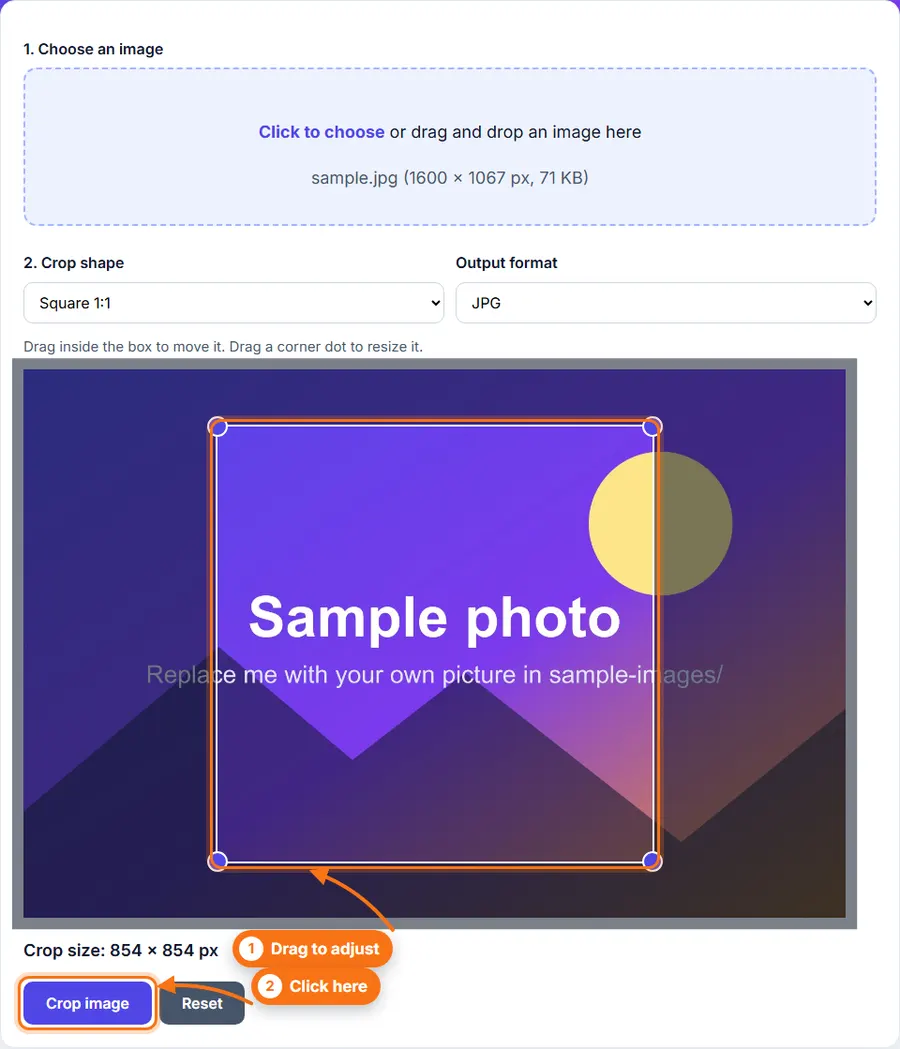
Drag inside the box to move it. Drag a corner dot to resize it.
Crop any photo with a draggable box and ratio presets, right in your browser.
Click to choose or drag and drop an image here
Drag inside the box to move it. Drag a corner dot to resize it.
How to crop an image online: choose a photo, pick a shape such as square or 16:9, drag the box over the part you want to keep, and click Crop image.
Move the crop box and resize it with the corner dots. It works with mouse and touch.
Pick square, portrait, landscape and other common shapes.
See the pixel size of your crop before you save it.
Use it without creating an account or wasting time.
Click the upload area and choose a photo, or drag one in.
Pick a crop shape, such as Free, Square 1:1 or Landscape 16:9.
Drag inside the box to move it. Drag a corner dot to resize it.
Check the Crop size line, which shows the pixel size of the result.
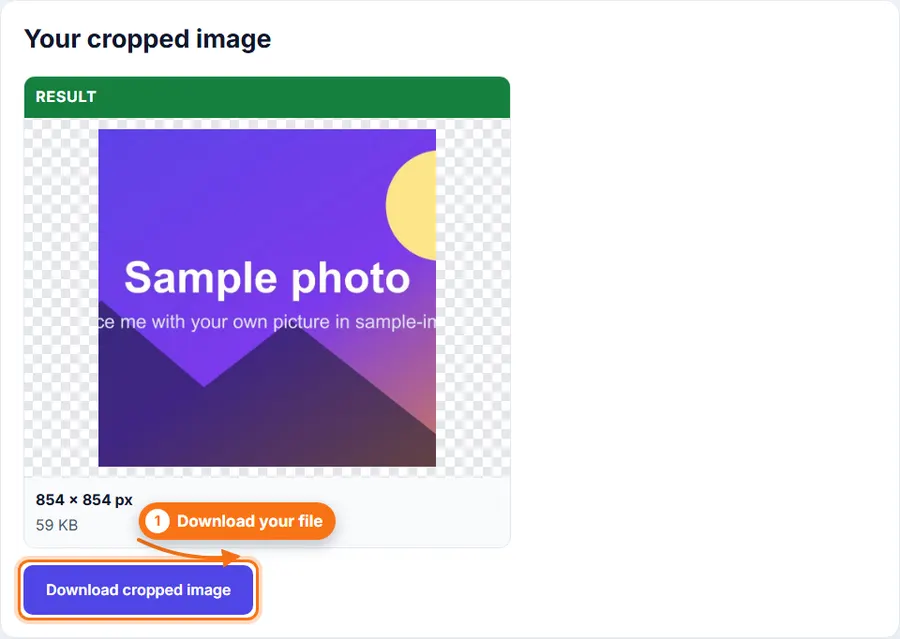
Choose JPG, PNG or WebP, then click Crop image.
Check the result and click Download.
You do not always need a desktop photo editor just to crop a photo. FastestImageTools keeps it simple so you can make the change you need and get back to your work without unnecessary editing tools.
Free, square 1:1, portrait 4:5, landscape 16:9, vertical 9:16, photo 3:2 and standard 4:3.
The cropper is built for both mouse and touch. If something does not respond on your device, please tell us on the Contact page.
The cropped area keeps its original pixels. Saving as JPG or WebP applies compression, so choose PNG if you want to avoid that.
Up to 30 MB and about 60 megapixels.
No. Cropping happens in your browser.
Your feedback helps us improve FastestImageTools.
Please do not include personal details.
Choose how to send your message. It is only sent when you press Send in the email service you pick.
No email service? Copy the message and send it to Itkountsllc@gmail.com from any email account.