Free Image Compressor

Reduce image size to a target in KB or MB, or pick a quality level. Compress JPG, PNG and WebP right in your browser.

Click to choose or drag and drop an image here

JPG and WebP are compressed by lowering the quality. PNG is compressed by reducing the number of colors and optimizing the file, which can slightly change colors. PNG keeps transparent areas. JPG turns them white.
Quick Method — Compress Image

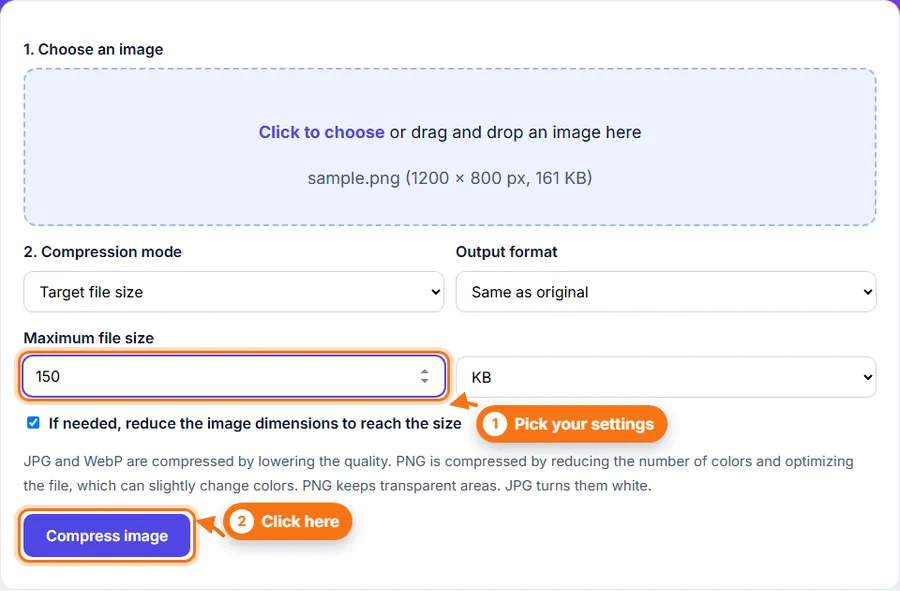
How to compress an image: choose a JPG, PNG or WebP image, type the size you need in KB or MB or pick a quality level, and click Compress image. Compare the sizes, then download.

Aim a little under the size you need. For a 100 KB limit, try 95 KB.

Make Image Files Smaller

Large photos can be too big for emails, forms and websites. Reduce the file size of a JPG, PNG or WebP to the limit you need, in KB or MB, or choose a quality level yourself, and compare the sizes before you download.

Why Use This Tool?

Target File Size

Type the size you need, in KB or MB, and the tool works toward it.

Quality Control

Prefer to choose the quality yourself? Use the quality setting instead.

See the Result

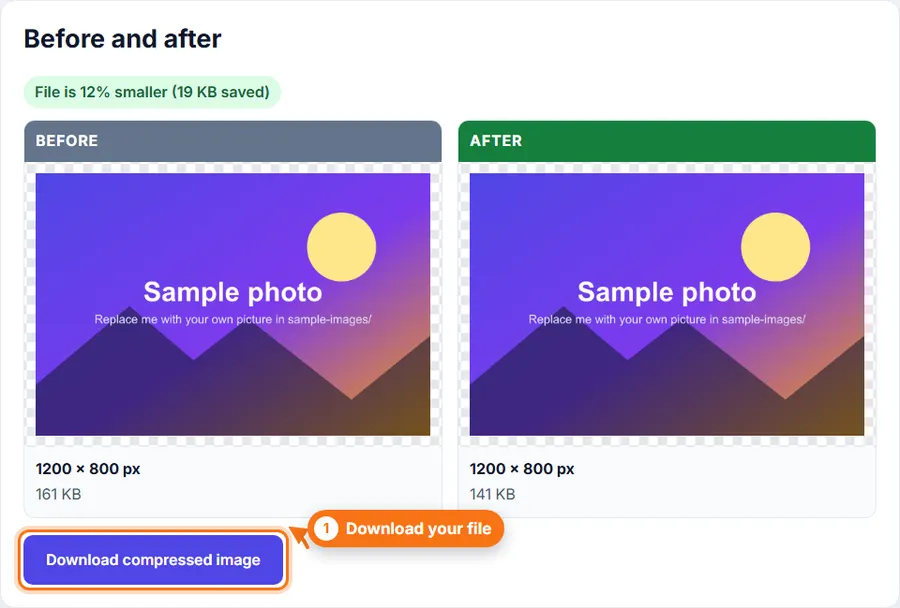
Compare the file sizes before and after. If the file is not smaller, you can keep your original.

No Login Required

Use it without creating an account or wasting time.

How to use Image Compressor

  1. 1

    Click the upload area and choose a photo, or drag one in.

  2. 2

    Choose Target file size to hit a size limit, or Quality level to set the quality yourself.

  3. 3

    For a target size, type a number and choose KB or MB.

  4. 4

    Choose an output format. Same as original keeps JPG, PNG and WebP files in their own format.

  5. 5

    Click Compress image.

  6. 6

    Check the Before and After panels and the new file size, then download.

Step-by-Step Pictorial Guide — Easy to Use

  1. A PNG chosen in the Image Compressor with a target size of 150 KB
    Step 1 A PNG chosen in the Image Compressor with a target size of 150 KB
  2. Before and after sizes in the Image Compressor, with the percent saved
    Step 2 Before and after sizes in the Image Compressor, with the percent saved

Common Uses

Tips

  • Aim a little under the limit you need. For a 100 KB limit, try 95 KB.
  • Keep the option to reduce dimensions ticked, so the tool can shrink the picture if quality alone is not enough.
  • Always look at the After preview before you upload.

Reduce an image's file size Without Complicated Software

You do not always need a desktop photo editor just to reduce an image's file size. FastestImageTools keeps it simple so you can make the change you need and get back to your work without unnecessary editing tools.

Frequently asked questions

Why did it not reach my target size?

Very small targets can be impossible for large, detailed photos. Allow the tool to reduce dimensions, or choose a larger target.

Can it compress PNG files?

Yes. PNG files are compressed by reducing the number of colors and optimizing the file. This keeps transparency, but colors can change slightly, so check the After preview. For photos, JPG or WebP usually gives a smaller file.

What if the result is not smaller?

Some files are already well compressed. If the new file is not smaller, the tool tells you and offers a button to keep your original.

Will compression lower the quality?

Usually a little. JPG and WebP remove some detail, and PNG compression can change colors slightly. A lower setting gives a smaller file but more visible change. PNG at 100% quality keeps every color.

How big is 1 KB?

Our tool counts 1 KB as 1,024 bytes. Some websites count 1,000 bytes, so leave a small margin when a limit is tight.

Is my photo uploaded?

No. The photo is compressed in your browser and never sent to our servers.

Was This Image Compressor Helpful?

Your feedback helps us improve FastestImageTools.