Introduction
Have you ever taken a photo that came out sideways, or wanted a mirror image of a design for a social media post, website or other project? You might be surprised to learn that you don't have to pay for professional photo editing software to solve these common problems.
With a few easy steps in an online image tool, you can rotate your photos to the right orientation, or flip them horizontally or vertically for a creative effect. You'll also learn how to make them look right for sharing on websites, in presentations and in documents.
Below, learn the difference between rotating and flipping an image, why you'd choose one over the other, and how to do both in seconds.
What Is the Difference Between Rotating and Flipping an Image?
| Rotating an image | Flipping an image |
|---|---|
| Rotating turns the image around its center point. | Flipping creates a mirrored version of your picture. |
| Rotate 90 degrees clockwise to turn your image to the right. | A horizontal flip reverses the image from left to right. |
| Rotate 90 degrees counterclockwise to turn your image to the left. | A vertical flip reverses the image from top to bottom. |
| Rotating 180 degrees turns the image upside down. | After a horizontal flip, someone standing on the left of your photo ends up on the right. |
How to Rotate or Flip an Image Online
To correct an image, you usually don't need to install any software on your computer or phone. You can rotate or flip images in a browser-based editor, such as our Rotate and Flip tool.
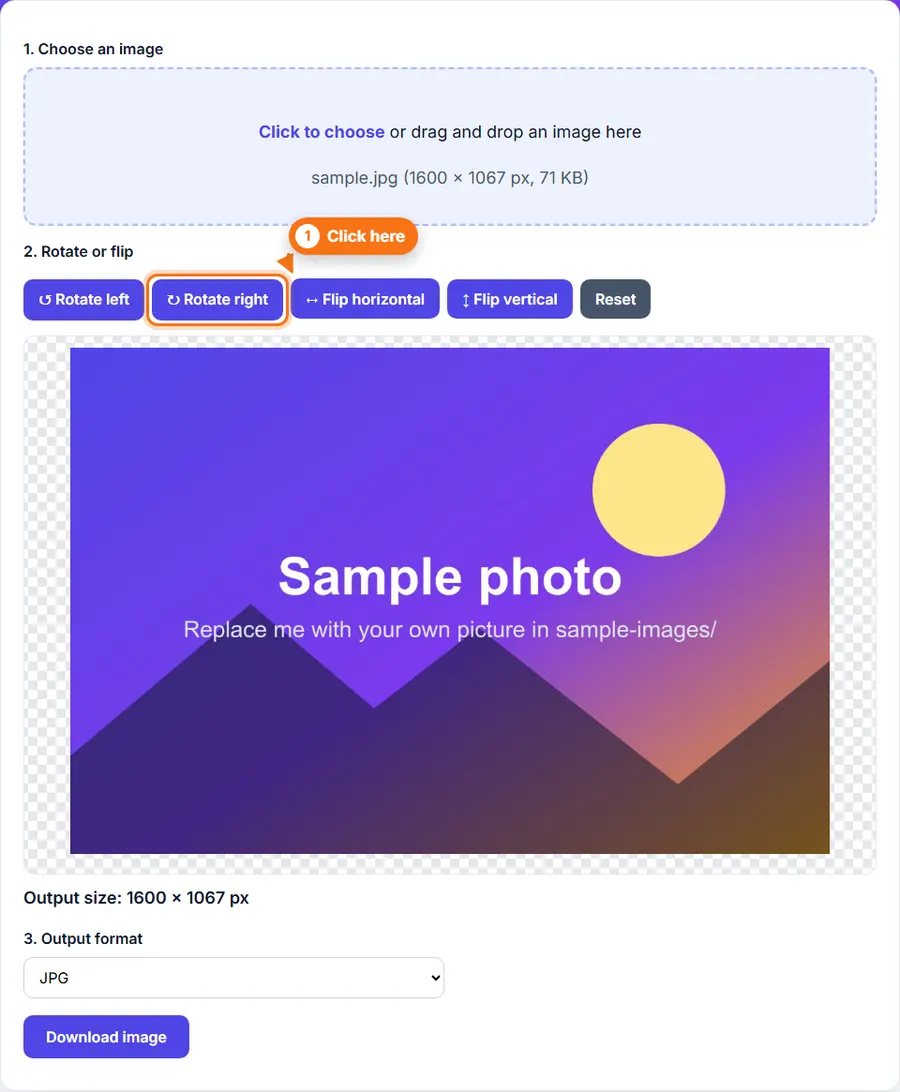
Step 1: Open an online image tool
Go to an image editing tool that can rotate and flip, such as the Rotate and Flip Image tool on FastestImageTools.
Step 2: Choose your image
Click the upload area and choose your photo, or drag it in. Your photo is processed in your browser and stays on your device.
Step 3: Rotate or flip it
Click Rotate left or Rotate right to turn the photo 90 degrees. Click twice to turn it 180 degrees. Click Flip horizontal to mirror it from left to right, or Flip vertical to flip it from top to bottom. The preview updates straight away, and Reset takes you back to the original.
Step 4: Check the result
Before you save your image, double-check that people, text, logos and anything else important look right.
Step 5: Download the edited image
Select the download or export option your tool offers and save the image to your device, choosing a suitable file format if the tool lets you. In our tool, pick JPG, PNG or WebP under Output format and click Download image.
Pro tip: Don't delete your original photo just yet. Once you've saved the rotated or flipped version, check how it looks before you do anything with the original. That way, you can easily start again if the result isn't right.
Open the Rotate and Flip toolWhen Should You Rotate or Flip a Picture?
It depends on your situation:
| Situation | Best action |
|---|---|
| A portrait photo appears sideways | Rotate 90 degrees clockwise or counterclockwise |
| A photo is upside down | Rotate 180 degrees |
| You want a mirror-effect design | Flip horizontally |
| You need to reverse an object from top to bottom | Flip vertically |
| A product photo faces the wrong direction | Consider a horizontal flip |
| An image needs a different layout orientation | Rotate to the required angle |
Think about what will happen before you flip a picture, especially if it contains text, logos or even clothing, which will be reversed.
Does Rotating or Flipping Reduce Image Quality?
Generally, no. Rotating or flipping usually just moves the pixels around, so the quality does not drop noticeably unless you make many complicated edits.
How you save your image also matters:
- JPEG / JPG: Saving an edited image as a JPEG again and again adds extra compression artifacts.
- PNG: A good format for screenshots and other graphics, because it saves without losing data. Photos saved as PNG are usually larger, though.
- WebP: Can give efficient compression, depending on your settings and the picture's content.
For the best results, avoid re-exporting the same JPEG at low quality again and again. Keep a copy of the original, and choose a suitable export format each time. Our guide to PNG vs JPG vs WebP explains which format to pick.
Common Mistakes to Avoid
Flipping when you meant to rotate
A horizontal flip does not fix a photo that was taken sideways. It mirrors the photo from left to right instead.
Forgetting that text will reverse
Flipping an image that contains text makes the text read backwards. This matters especially for ads, posters, screenshots and product labels.
Saving in an unsuitable format
If you also care about file size, transparency support or image quality, make sure you pick a suitable format.
Overwriting the original file
Keep the original version until you are sure you are happy with how your edits look.
Ignoring the final dimensions
Some edits change a picture's dimensions or orientation. For example, rotating by 90 degrees swaps the width and height. If you're using the photo on a site like Facebook, as a profile picture or in a social media post, check that the final image matches the dimensions the platform asks for.
Related Tools and Guides
- Rotate and Flip Image: turn or mirror a photo in seconds.
- Image Cropper: cut out just the part you need.
- Image Resizer: change the width and height in pixels or by percentage.
- PNG vs JPG vs WebP: which format to use.
More from the blog
- Facebook Image Sizes and Quality: How to Make Your Posts Stop the Scroll
- Instagram Image and Reel Sizes That Get Noticed in 2026
- Image Resolution Explained: Pixels, Dimensions and Quality
- How to Resize Animated GIFs Online
- How to Resize an Image Without Losing Quality
- How to Compress an Image to 100 KB (or Any Size)
- PNG vs JPG vs WebP: Which Format Should You Use?