Animated GIFs are often used to share reactions, demonstrate processes, explain ideas and add movement to digital images. GIFs make content on social media platforms more engaging without requiring people to play a video.
A GIF that looks good on one platform, such as Facebook, may appear too large, too small or poorly positioned on another. Large GIF files can also take longer to load, may exceed a platform's upload limits and can use a lot of data.
Our GIF Resizer helps solve these problems by letting you adjust the width and height of an animated GIF to suit your needs. Whether you are preparing a GIF for Facebook, Instagram, X, Threads, a website, a presentation or an online community, resizing it can help you get the dimensions you need.
Open the GIF ResizerWhat Is a GIF?
GIF stands for Graphics Interchange Format. It is an image file format that supports both still images and simple animations. Animated GIFs show a sequence of image frames to create the appearance of movement. Here is how a GIF differs from a video:
| GIF | Video |
|---|---|
| Has no audio track | May or may not have an audio track |
| Plays automatically in compatible browsers | Usually plays in a video player and may need a click to start |
| Supports up to 256 colors per frame | Supports millions of colors |
How Does an Animated GIF Work?
An animated GIF creates the illusion of movement by showing frames one after another, according to their timing information. Each frame represents a particular moment in the animation.
When a compatible browser or app displays the GIF, it shows these frames in order, one after another.
For example, think of a GIF of a kiss. The animation might contain several frames showing the lips in different positions. When these frames play in sequence, the kiss appears to happen.
An animated GIF is made of these elements:
| Element | What it does |
|---|---|
| Frames | The individual images that make up the animation. |
| Frame timing | Information that sets how long each frame is shown. |
| Dimensions | The width and height of the animation in pixels. |
| Color information | The colors used to display each frame. |
| Looping instructions | Information that sets whether and how the animation repeats. |
What Is a GIF Resizer?
A GIF resizer is an online tool that changes the dimensions of an animated GIF on your phone or computer.
For example, you might have a GIF that measures 800 × 400 pixels but need a smaller version of 400 × 200 pixels. A GIF resizer can reduce its dimensions while keeping the animation.
What a good GIF resizer does
- Reduces or increases the width and height.
- Keeps the original aspect ratio.
- Creates smaller versions for websites and social media posts or stories.
- Adjusts dimensions to meet a particular platform's requirements.
- Lets you download the resized animation as a GIF.
Ready to resize an animation with all of these features? Visit FastestImageTools and explore the available image tools.
How GIF Resizer Works by Percentage
| Percentage | Effect | Output format |
|---|---|---|
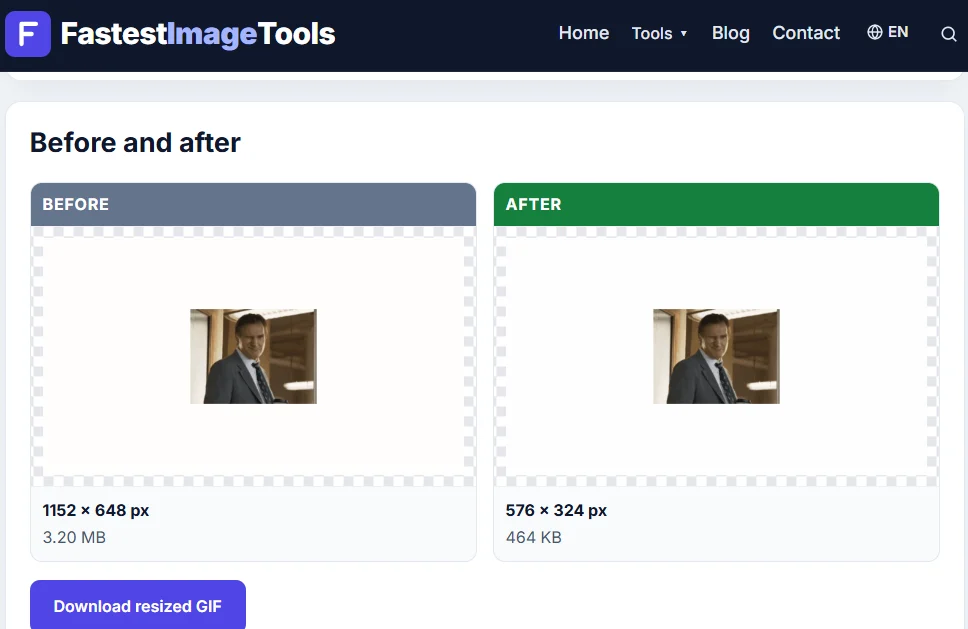
| 50% resizing | Scaling by 50% halves the width and height and makes the file smaller. Example: 1152 x 648 px and 3.20 MB becomes 576 x 324 px and 464 KB. | GIF |
| 75% resizing | Scaling by 75% makes the width and height 25% smaller. Example: 1152 x 648 px and 3.20 MB becomes 864 x 486 px and 970 KB. | GIF |
| 100% resizing | 100% keeps the original dimensions, but the file can still get smaller because the GIF is saved again. Example: 1152 x 648 px and 3.20 MB stays 1152 x 648 px and becomes 1.7 MB, about 47% smaller. | GIF |
How GIF Resizer Works by Size
| Pixels | Effect | Output format |
|---|---|---|
| Set the size you need. Example: the required size is 960 x 540 px. | A 1152 x 648 px GIF of 3.20 MB becomes 960 x 540 px. The new file size depends on the GIF. | GIF |
Before and after resizing by 50%
Why Do You Need to Resize a GIF?
There are several reasons to resize an animated GIF.
1. Meet social media requirements
Social media platforms have their own media requirements and restrictions. An animation that exceeds the allowed dimensions or file size may need to be adjusted before uploading.
Resizing can help prepare a GIF for where it is going. However, resizing alone cannot guarantee that a platform will accept the file, because format, file size, duration and other restrictions may also apply.
2. Improve website performance
Large animated files can increase page weight and take longer to download, especially on slower connections.
If a GIF is displayed at only 400 pixels wide on a webpage, serving a much larger version may be unnecessary. Resizing it closer to its actual display size can reduce the amount of image data that needs to be downloaded.
Recommended GIF Dimensions for Social Media Platforms
Social media platforms handle animated GIFs differently. Some support GIF uploads in certain places, while others convert animations to video or do not support animated GIFs in some post types.
This table shows suggested working dimensions. They are not universal or guaranteed requirements for animated GIF uploads.
| Platform | Common visual use | Suggested dimensions | Important consideration |
|---|---|---|---|
| Feed content and shared animations | 1200 × 630 px for landscape content | Check the intended post type and current upload restrictions. | |
| Feed posts and vertical content | 1080 × 1080 px for square content | Animated GIF uploads are not supported in every publishing workflow; a video may be required. | |
| X (Twitter) | Reaction GIFs, memes and short demonstrations | 1200 × 675 px for landscape content | Animated GIF uploads have specific file size, frame count and dimension limits. |
| Visual inspiration and demonstrations | 1000 × 1500 px for vertical content | Check current supported formats and upload restrictions. | |
| Discord | Chat reactions and shared animations | 480 × 480 px as a practical starting point for a square GIF | Upload limits depend on the type of upload and account conditions. |
| Slack | Team conversations and reaction animations | 256 × 256 px for a small square animation | Custom emoji have different requirements from ordinary file uploads. |
Platform specifications and publishing features may change. Before preparing a GIF for any destination, check the platform's current documentation.
Tip: Choose the dimensions based on where the animation will appear. A square GIF may work well in a chat, while a wider animation may suit a website banner or a landscape post better.
Frequently Asked Questions
1. Can I resize a GIF without losing its animation?
Yes. A GIF resizer designed for animated files can resize the frames while keeping the animation.
2. Will resizing a GIF reduce its quality?
Resizing to smaller dimensions can remove visual detail, while enlarging a GIF can make it look pixelated.
3. Can I resize a GIF for Instagram?
You can adjust a GIF's dimensions for Instagram, but that does not guarantee Instagram will accept it as an animated GIF. Depending on how you publish and the type of content, you may need to convert the animation to a video.
4. What is the difference between a GIF resizer and a GIF compressor?
A GIF resizer changes the animation's width and height. A GIF compressor aims to reduce the file size, for example through optimization or other changes. Some tools offer both.
5. Why is my resized GIF still large?
The animation may contain many frames, complex movement or detailed visual content, so resizing alone may not reduce the file enough. Try compression, frame optimization or trimming unnecessary parts of the animation.
More from the blog
- Facebook Image Sizes and Quality: How to Make Your Posts Stop the Scroll
- Instagram Image and Reel Sizes That Get Noticed in 2026
- Image Resolution Explained: Pixels, Dimensions and Quality
- How to Rotate or Flip an Image Online
- How to Resize an Image Without Losing Quality
- How to Compress an Image to 100 KB (or Any Size)
- PNG vs JPG vs WebP: Which Format Should You Use?